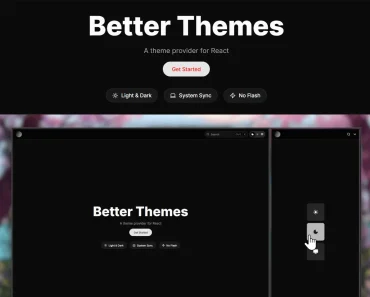
Description:
React Native Theme is an easy-to-use theming library for React Native applications. It allows developers to implement dynamic themes, including light, dark, and custom color schemes.
Features
- System theme detection and automatic updates
- Theme persistence with AsyncStorage
- Custom theme creation support
- Built-in animated theme switching dialog
- TypeScript support with type definitions
- AsyncStorage integration for theme persistence
- Performance optimized theme changes
- Multiple theme configuration options
Use Cases
- User Preference Customization: Allow users to select their preferred theme (light, dark, or custom) for a personalized experience.
- Accessibility Support: Offer a high-contrast dark theme to improve readability and reduce eye strain for users with visual impairments.
- Brand Consistency: Implement custom themes that align with the brand’s color scheme to maintain a consistent visual identity across the app.
- Contextual Themes: Adjust the app’s theme based on the time of day or specific user activities to enhance usability.
- Dynamic Content Adaptation: Change the theme dynamically based on the content displayed to improve user engagement and clarity.
Installation
Follow these steps to install the library:
Prerequisites
- Ensure your environment is set up for React Native development.
- Node.js and npm/yarn must be installed.
Installation Commands
Using npm:
npm install @devjaycode/react-native-themeUsing yarn:
yarn add @devjaycode/react-native-themeUsage
Defining Themes
Start by defining your themes:
import { createThemeBuilder } from '@devjaycode/react-native-theme';
const themes = createThemeBuilder({
  lightTheme: {
    primaryColor: '#007AFF',
    backgroundColor: '#FFFFFF',
    textColor: '#000000',
  },
  darkTheme: {
    primaryColor: '#0A84FF',
    backgroundColor: '#000000',
    textColor: '#FFFFFF',
  },
  defaultTheme: 'light',
});
Wrapping Your Application
Wrap your app with the ThemeProvider:
import { ThemeProvider } from '@devjaycode/react-native-theme';
function App() {
  return (
    <ThemeProvider themeBuilder={themes}>
      <YourApp />
    </ThemeProvider>
  );
}
Applying Themes in Components
Access the theme and apply it in your components:
import { useTheme } from '@devjaycode/react-native-theme';
function MyComponent() {
  const { theme } = useTheme();
  return (
    <View style={{ backgroundColor: theme.backgroundColor }}>
      <Text style={{ color: theme.textColor }}>Hello, themed world!</Text>
    </View>
  );
}
Theme Switching Dialog
Integrate a theme-switching dialog with ease:
import { ThemeDialog } from '@devjaycode/react-native-theme';
function MyComponent() {
  const [dialogVisible, setDialogVisible] = useState(false);
  return (
    <>
      <Button title="Change Theme" onPress={() => setDialogVisible(true)} />
      <ThemeDialog
        visible={dialogVisible}
        onClose={() => setDialogVisible(false)}
      />
    </>
  );
}
FAQs
Q: How do I add a custom theme?
A: Use the createThemeBuilder function and define your theme object with the desired colors. Then, pass it to the ThemeProvider.
Q: Can I change the theme dynamically at runtime?
A: Yes, use the setTheme function from the useTheme hook to change the theme dynamically.
Q: Does React Native Theme support system theme changes?
A: Yes, set the theme to ‘system’ to automatically detect and apply system theme changes.
Q: How is the theme persisted?
A: React Native Theme uses AsyncStorage to store the selected theme and restore it when the app restarts.
Q: Can I customize the theme switching dialog?
A: Yes, you can customize the colors and visibility of the ThemeDialog component.
Preview