Description:
React Web Camera is a lightweight React component for capturing images from a device’s camera. It uses modern React features like Hooks and forwardRef to give you programmatic control over the camera functionality.
Standard HTML file inputs close the camera after a single photo. This component allows users to capture multiple images in one session. Works both on desktop and mobile browsers.
Features
- 📷 Front & Back Camera Support. Easily capture images from both user-facing and environment-facing cameras.
- 🖼️ Multiple Image Formats. Export captured images in
jpeg,png, orwebpformats. - ⚡ Adjustable Capture Quality. Control the quality of captured JPEG and WEBP images with a value from 0.1 to 1.0.
- 🔄 Seamless Camera Switching. Programmatically switch between the front and back cameras during a capture session.
- 📸 Multi-Image Capture. Take multiple pictures in a single session on both desktop and mobile devices.
- 🛠️ Full Programmatic Control. Use
refmethods to trigger actions likecapture(),switch(), andgetMode(). - 🎨 Custom Styling. Apply your own CSS classes and inline styles to the container and video elements.
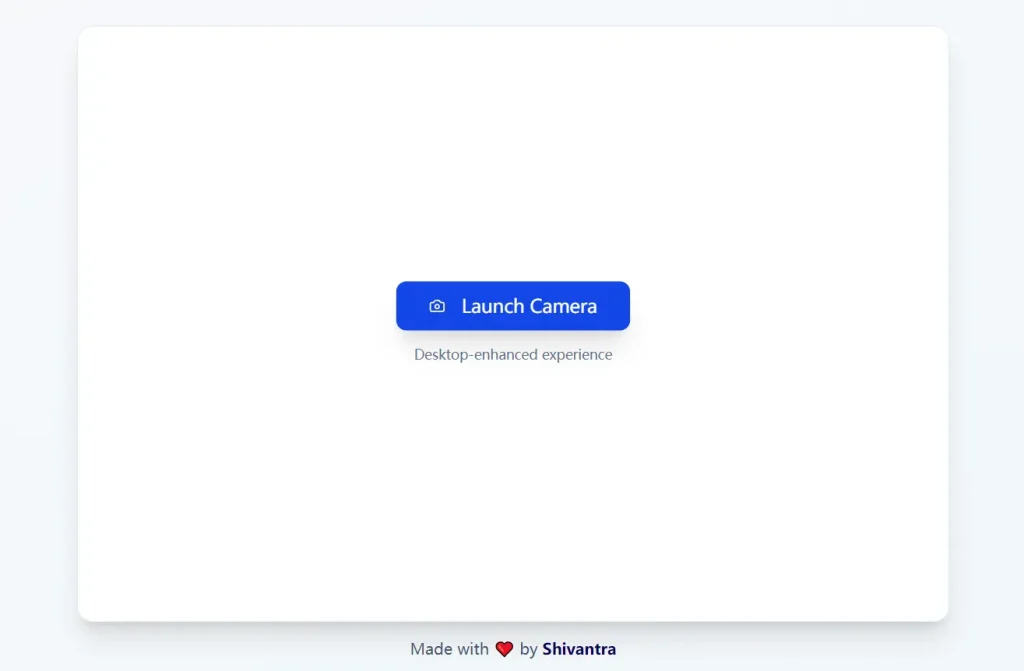
Preview
Use Cases
- Identity Verification (KYC). Capture multiple documents, like a driver’s license and a passport, in a single, uninterrupted user flow.
- Field Service and Inspections. Allow technicians to document issues or completed work by taking several photos of equipment or a job site.
- Delivery and Logistics. Enable delivery drivers to capture proof of delivery, including photos of the package at the location from different angles.
- User-Generated Content. Provide a simple way for users to upload multiple images for profiles, listings, or posts without reopening the camera for each photo.
How to Use It
1. Install the package with NPM.
npm install @shivantra/react-web-camera2. Import the WebCamera component and its WebCameraHandler type into your React component. You will also need useRef to access the component’s methods and useState to manage the captured images.
import React, { useRef, useState } from 'react';
import { WebCamera, WebCameraHandler } from '@shivantra/react-web-camera';
3. Inside your component, create a ref for the WebCamera and state for the images inside your component. Then, define functions to handle the capture and switch actions. The capture method is asynchronous and returns a File object, which you can process as needed.
export default function CameraComponent() {
  const camera = useRef<WebCameraHandler>(null);
  const [capturedImages, setCapturedImages] = useState<string[]>([]);
  const handleCapture = async () => {
    const file = await camera.current?.capture();
    if (file) {
      // Convert file to a displayable format, like a data URL
      const imageUrl = URL.createObjectURL(file);
      setCapturedImages(prevImages => [...prevImages, imageUrl]);
    }
  };
  const handleSwitch = () => {
    camera.current?.switch();
  };
  return (
    <div>
      <WebCamera
        ref={camera}
        captureMode="back"
        captureType="jpeg"
        captureQuality={0.8}
        style={{ width: '100%', maxWidth: '400px', height: 'auto' }}
      />
      <button onClick={handleCapture}>Capture Photo</button>
      <button onClick={handleSwitch}>Switch Camera</button>
      <div>
        <h3>Captured Images:</h3>
        {capturedImages.map((src, index) => (
          <img key={index} src={src} alt={`Capture ${index}`} style={{ width: '100px', margin: '5px' }} />
        ))}
      </div>
    </div>
  );
}
4. Customize the component with the following props.
className: A string that applies a CSS class to the main containerdiv.style: An object for applying inline CSS styles to the main containerdiv.videoClassName: A string that applies a CSS class directly to the<video>element.videoStyle: An object for applying inline CSS styles directly to the<video>element.getFileName: An optional function that returns a string to be used as the captured file’s name.captureMode: Sets the initial camera. Accepts"front"or"back". The default is"back".captureType: Defines the image format. Accepts"jpeg","png", or"webp". The default is"jpeg".captureQuality: A number between0.1and1.0that sets the image quality. The default is0.8.onError: A callback function that is triggered when a camera error occurs.
FAQs
Q: Does the component require HTTPS?
A: Yes, most modern browsers require a secure connection (HTTPS) to grant access to the user’s camera for privacy and security reasons.
Q: How do I handle camera permissions?
A: The browser will automatically prompt the user for camera access when the component mounts. You can use the onError prop to catch and handle cases where the user denies permission.
Q: What is the main advantage of this component over a standard <input type="file" /> tag?
A: The primary advantage is the ability to capture multiple photos in a single session on mobile devices. A standard file input with the capture attribute typically closes the camera after one photo, creating a disjointed user experience for multi-image uploads.
Q: Can I customize the appearance of the camera view?
A: Yes, you can style the component using the style and className props for the container, and videoStyle and videoClassName for the video element itself.


